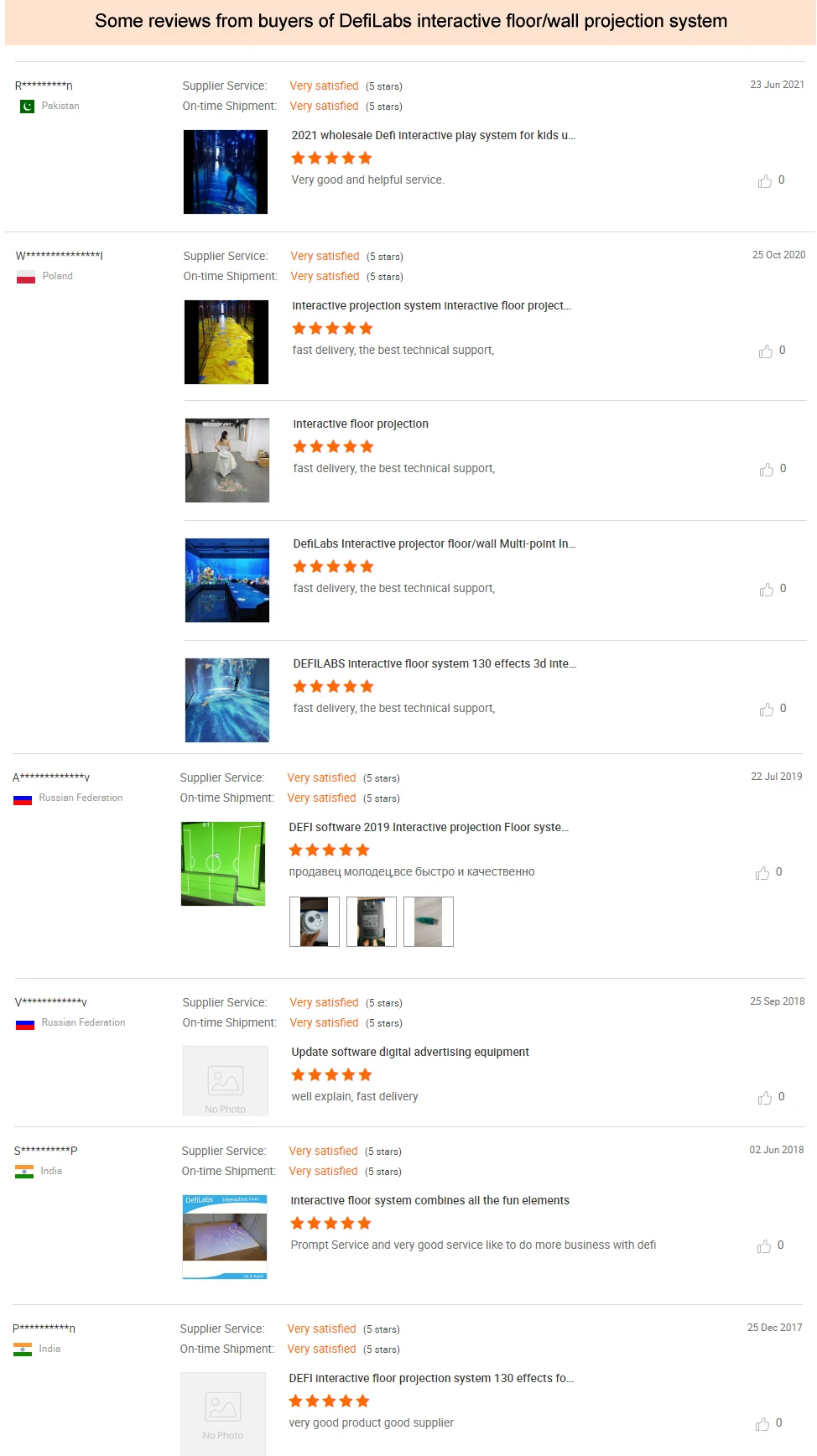
Interactive Floor / Wall Projection System Support 8 Projectors with Customized Effects
Regular price $273.00SPECIFICATIONS
Application: Children games
Certification: ROHS CE
Effect Counta: 80 defferent interactive effects
Operating system: Windows 7/8/10
Product name: Interactive Floor Projection network camera version
Resolution: 1920*1080/3840*1080/ 2048*1080
Response Time: 20ms
Warranty: 12 Months
after-sales service: Call Center and on-line Technical Support
color: Silver
package: Yes
place of origin: China
products status: New
series: For Business
system required1: Computer sever
system required2: Projector/Projectors
warranty(year): 1-Year
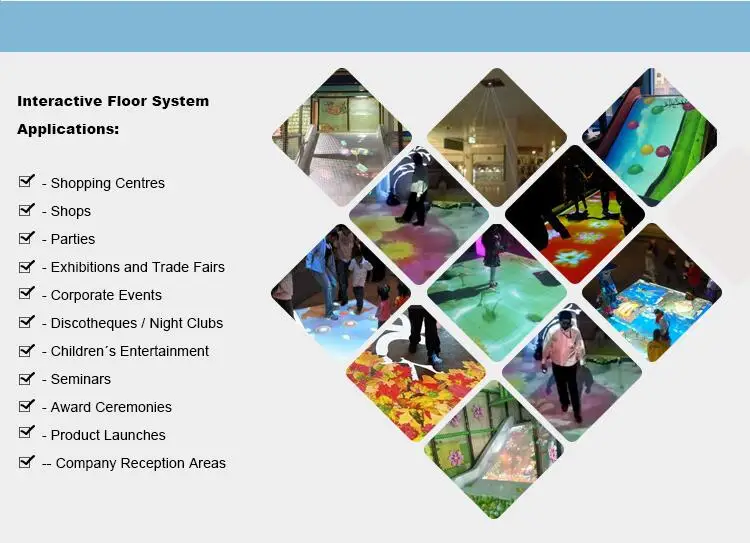
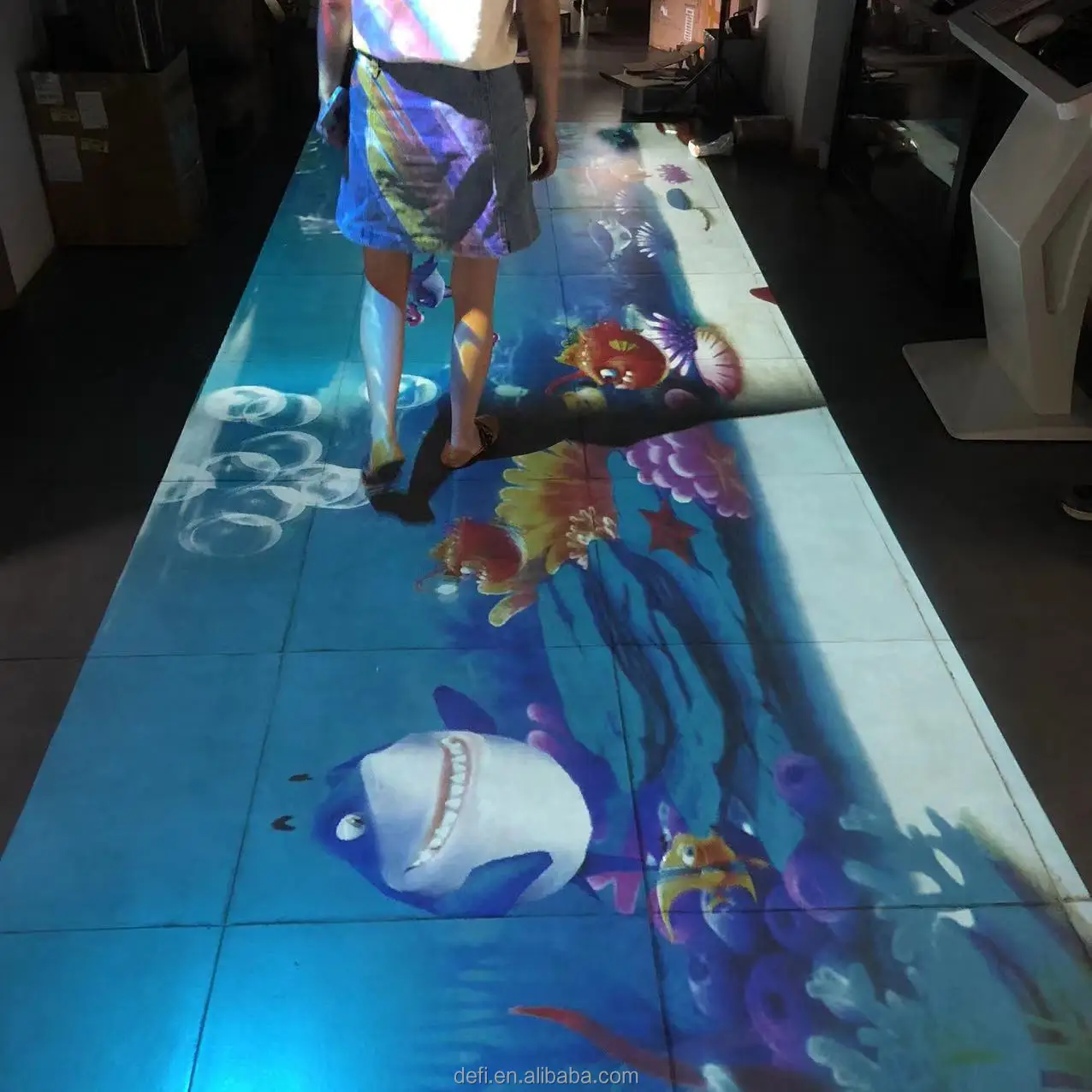
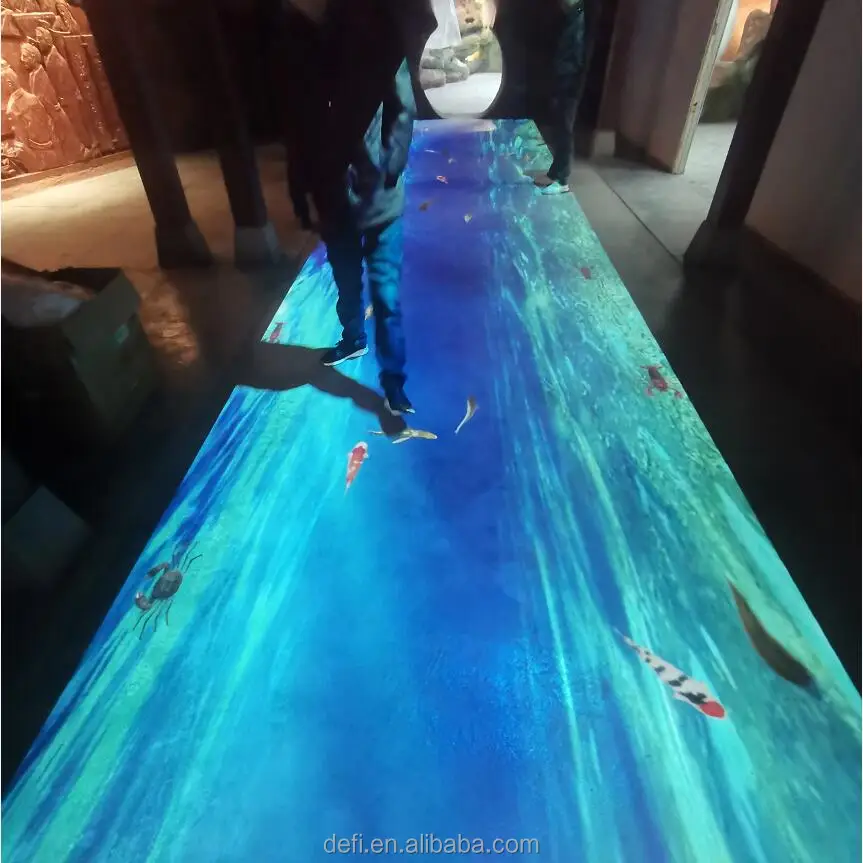
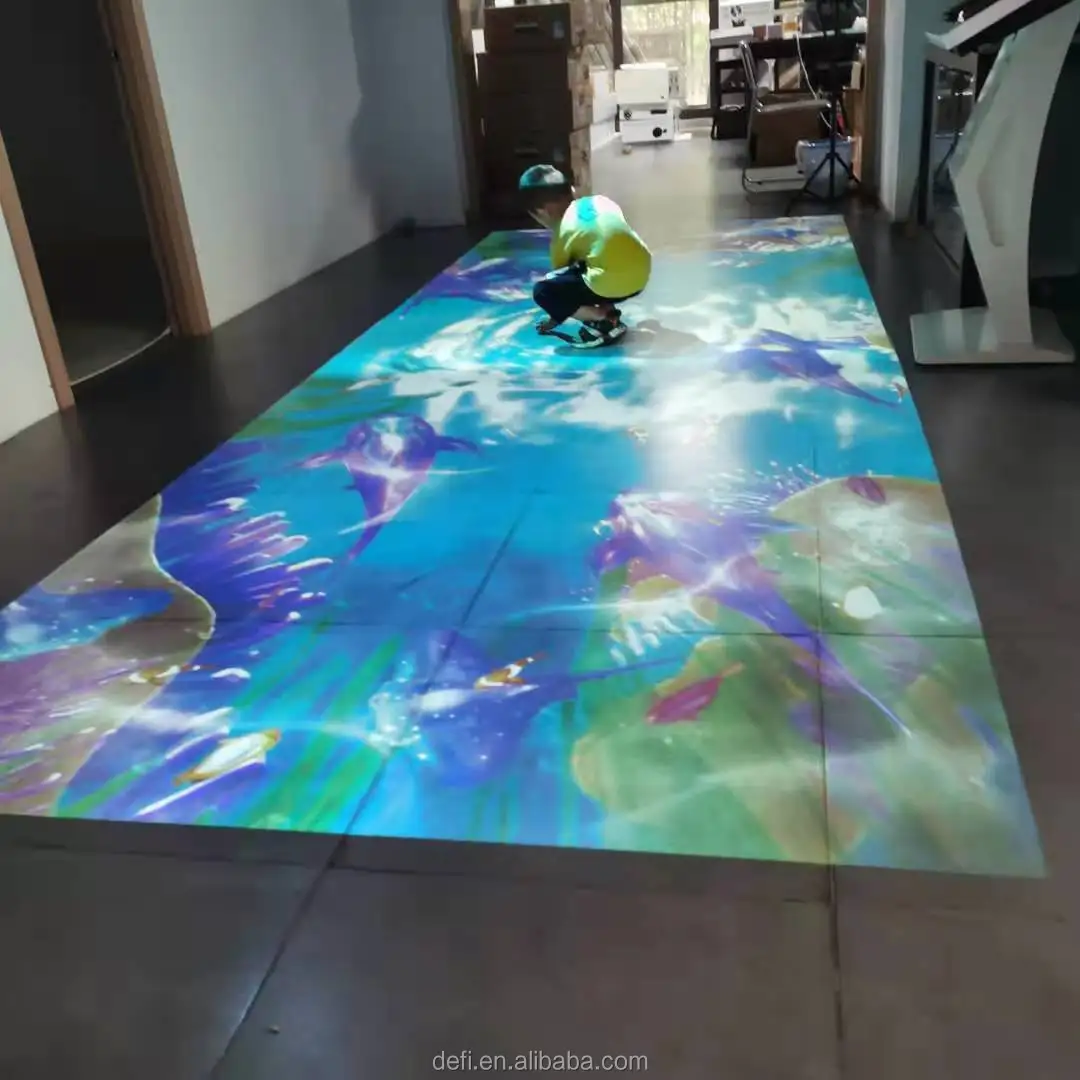
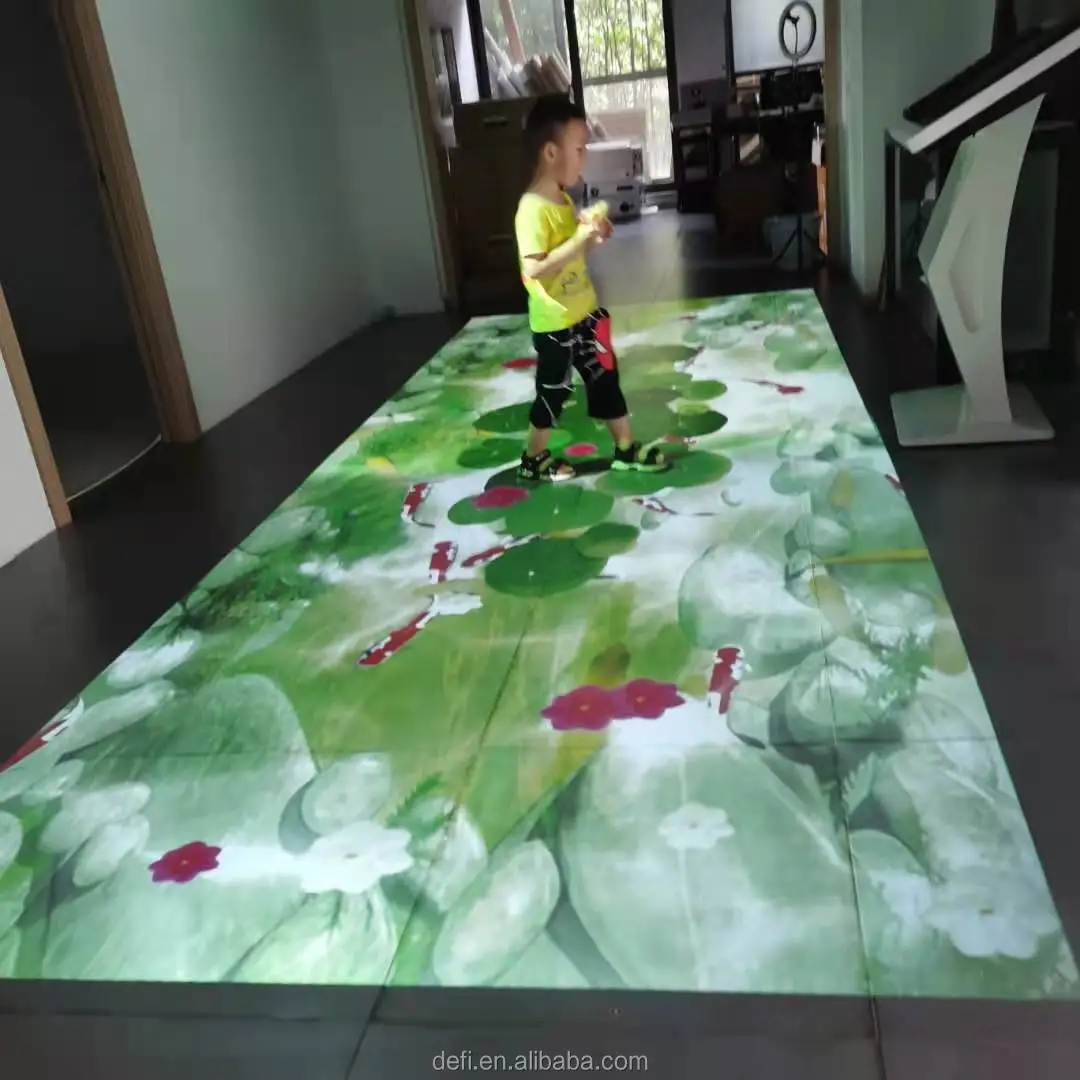
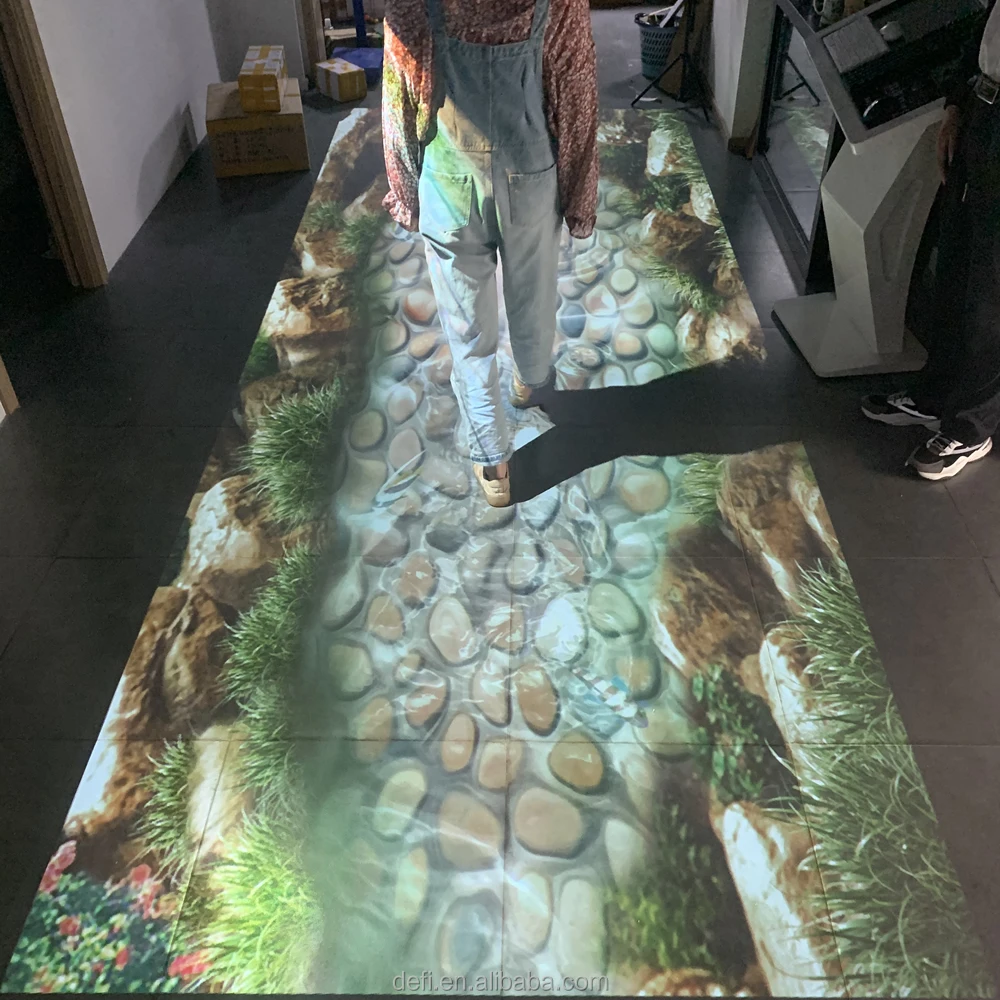
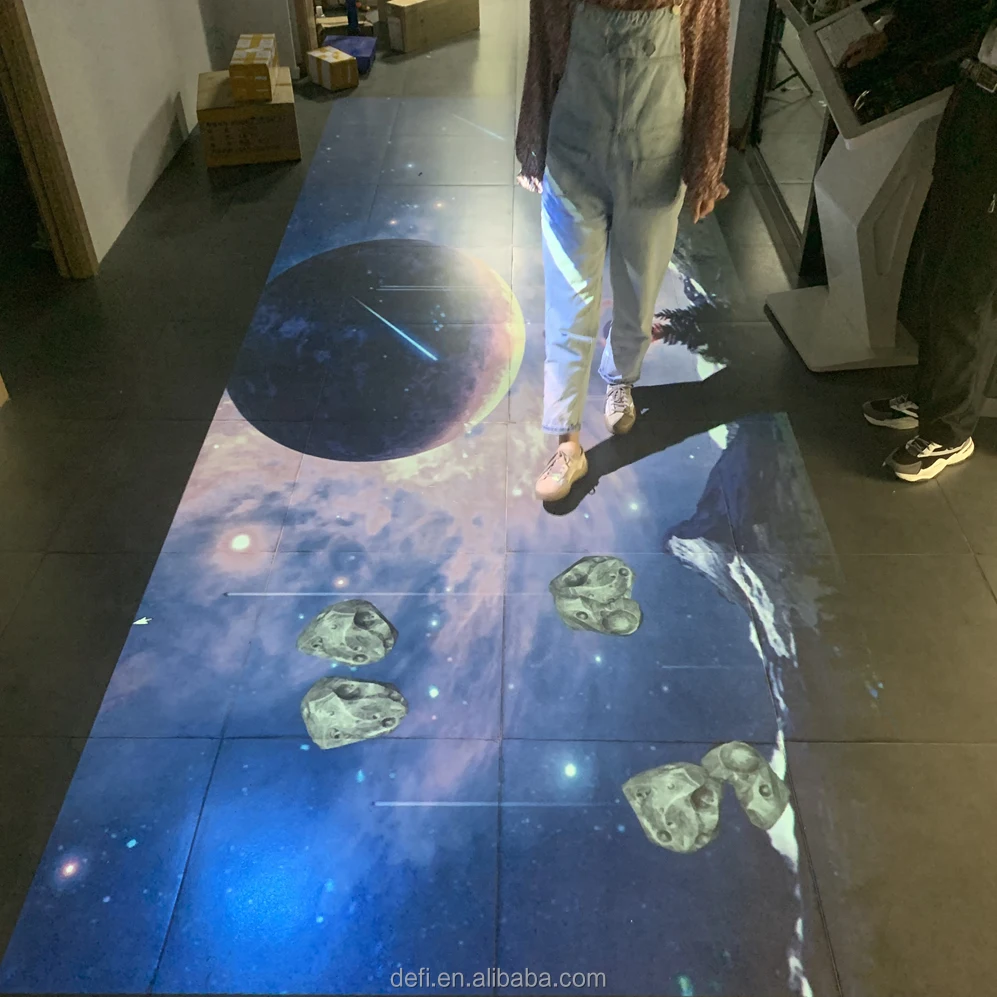
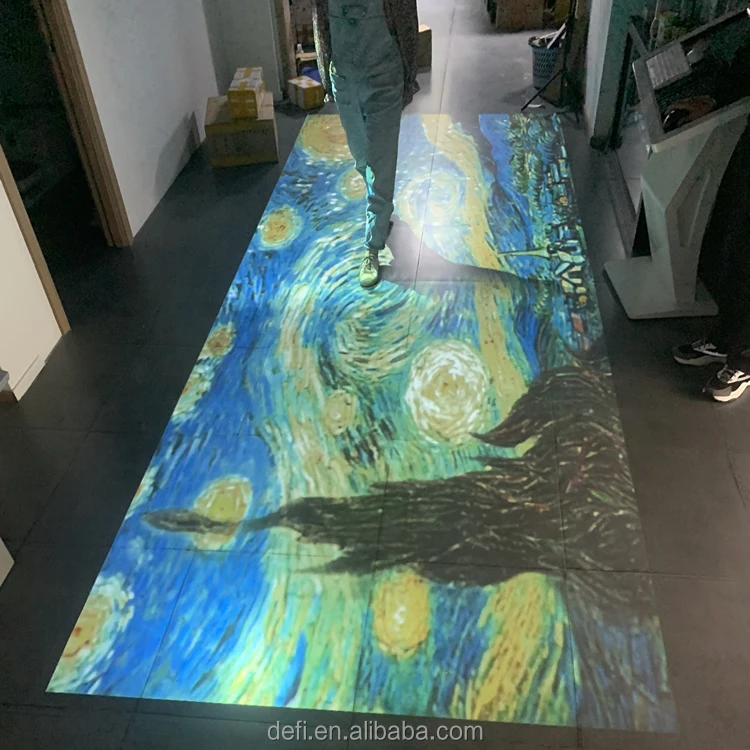
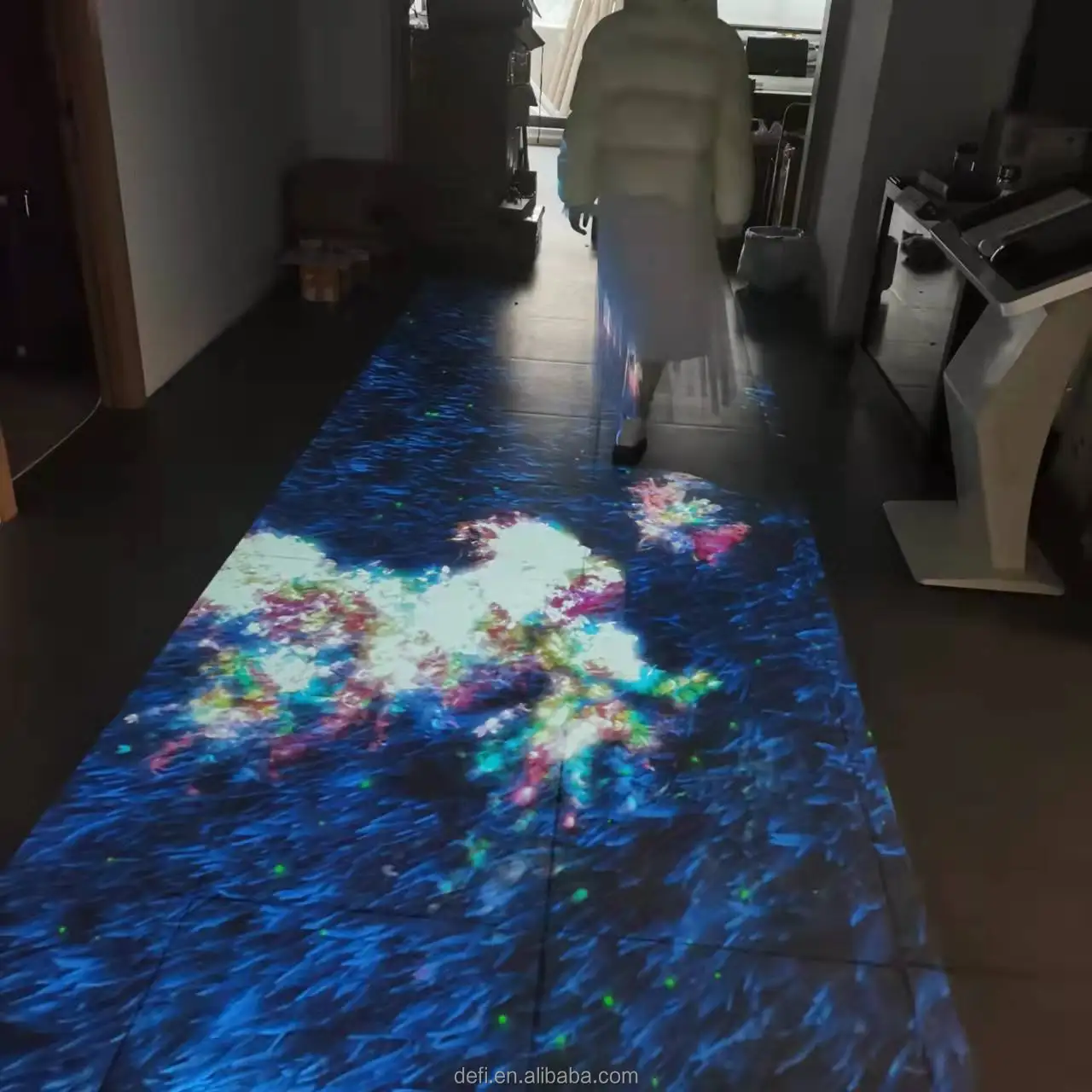
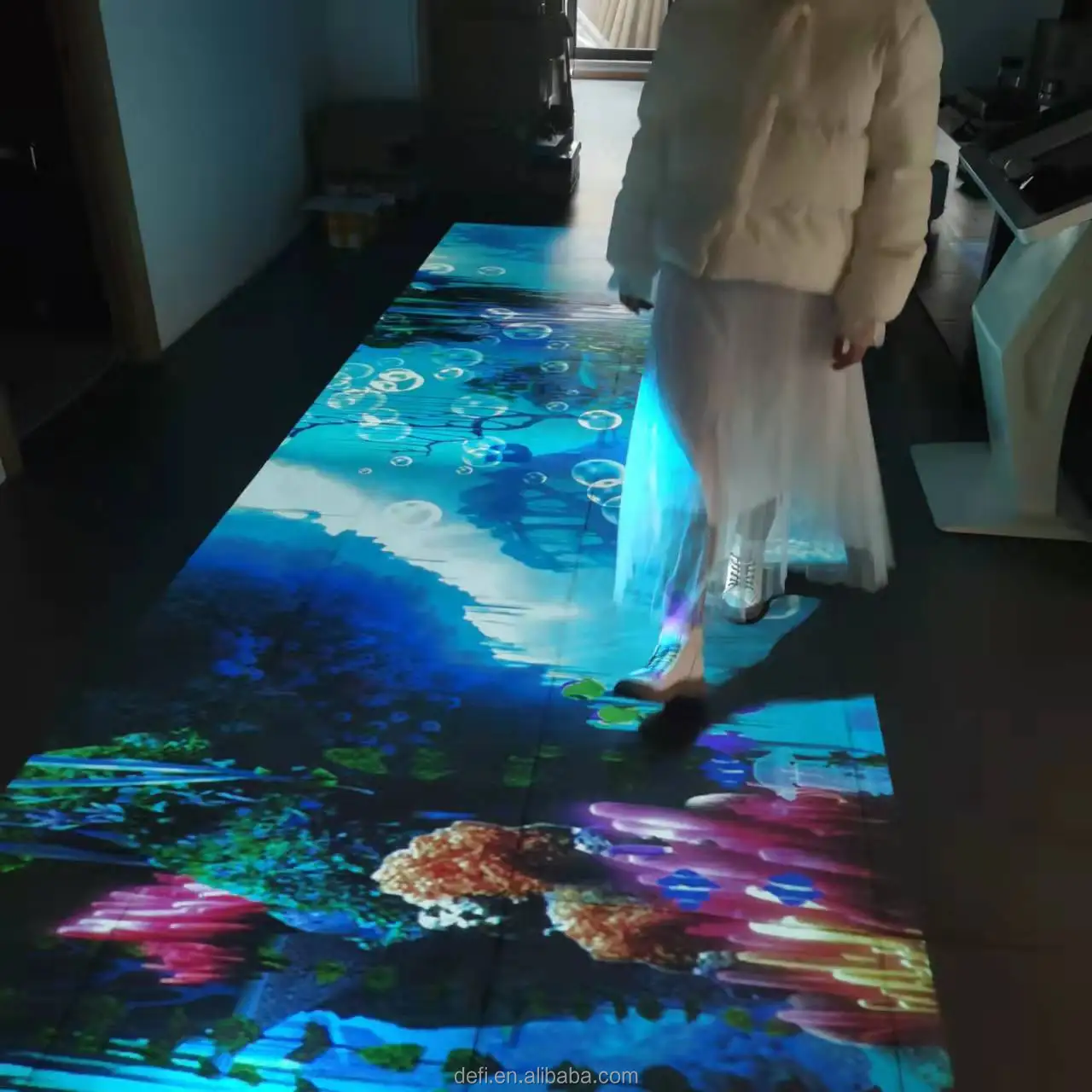
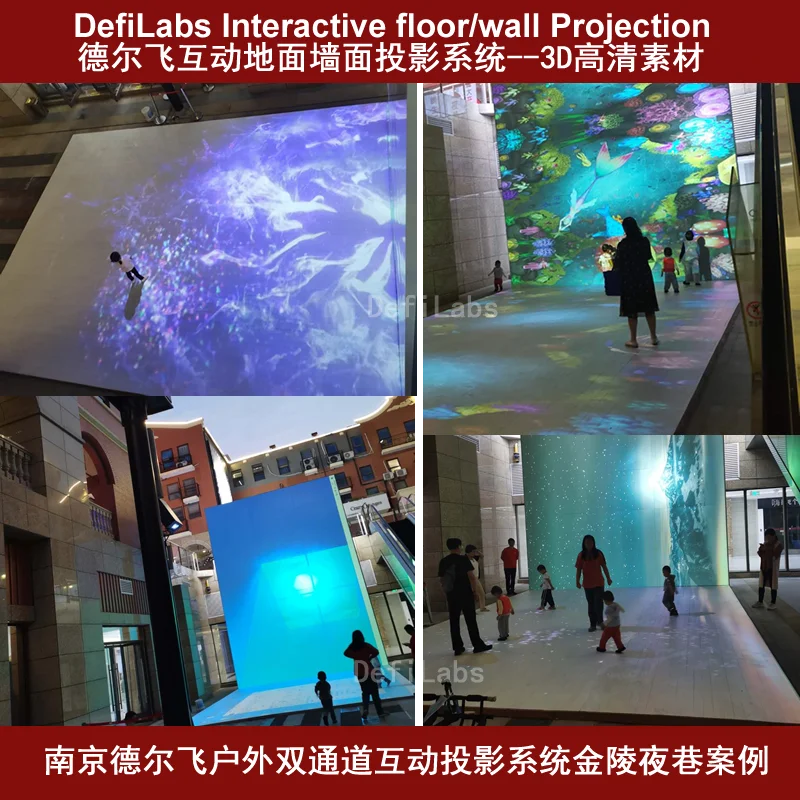
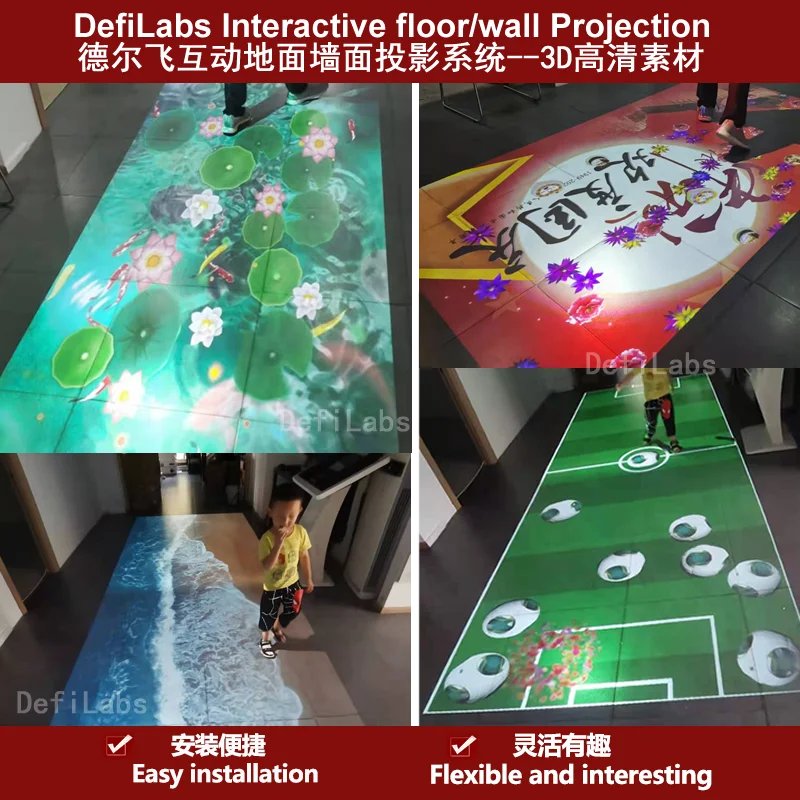
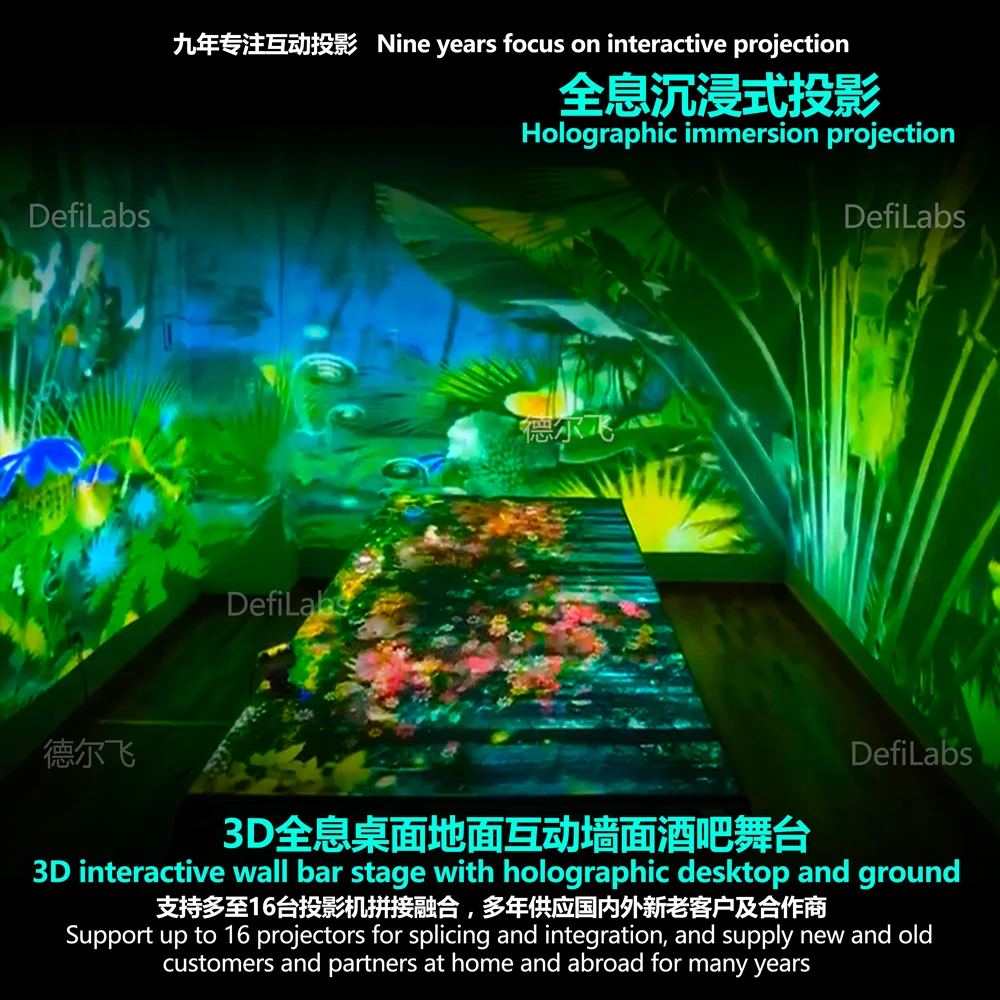
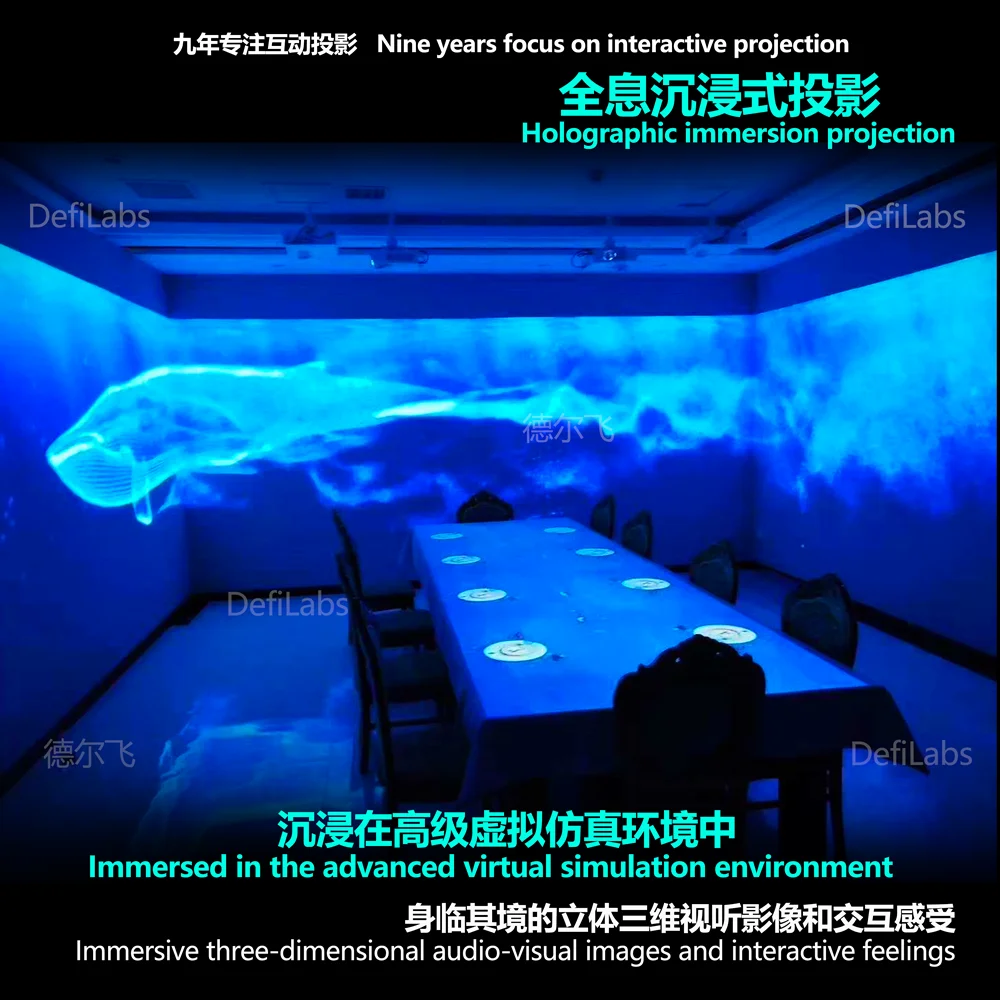
DefiLabs Excellent quality low price interactive floor and wall projection system for kids, wedding, event,advertising, exhibition, shopping mall indoor and outdoor.
Our DefiLabs Interactive Projection System is unusual, exciting, and modern.
It not only exists in real time, but in a unique way can create and send powerful messages by way of advertising,
brand re-enforcement and establishing corporate identity.
Imagine for a moment, if you will, walking into a fish restaurant, over a swimming pool filled with shimmering water,goldfish swimming through the water and over the restaurant´s logo. Then, as you walk you see ripples in the water, hear the sounds of your footsteps and see the fish darting away from your feet. This is all possible at the same time with the Interactive Media System.
Similarly, if you place this system into a corporate function, guests can walk over the pool and corporate logo at the beginning of the event.
We develop customized network camera version interactive floor and wall system max support 16 channels and 1 to 4 channels is
hot sale version
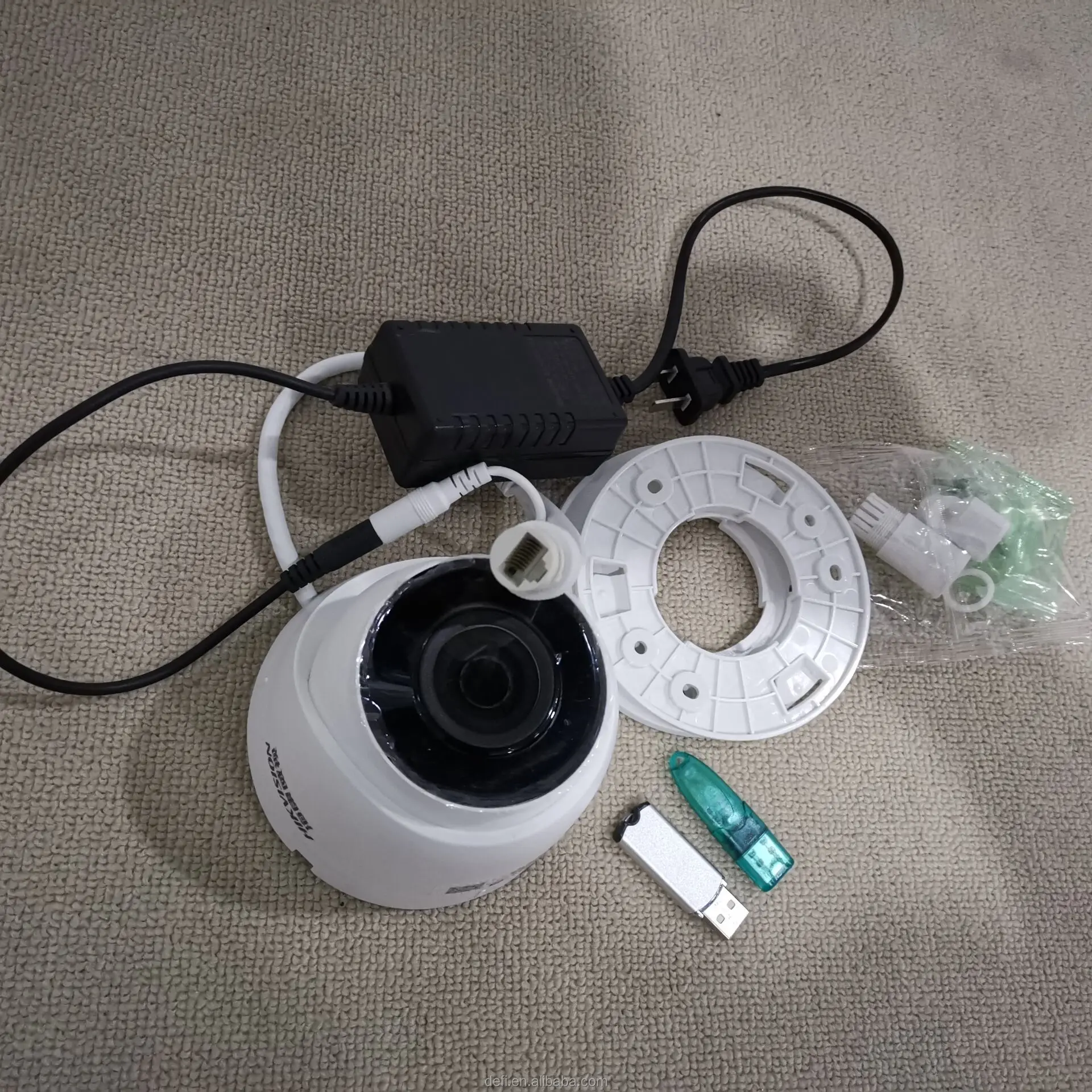
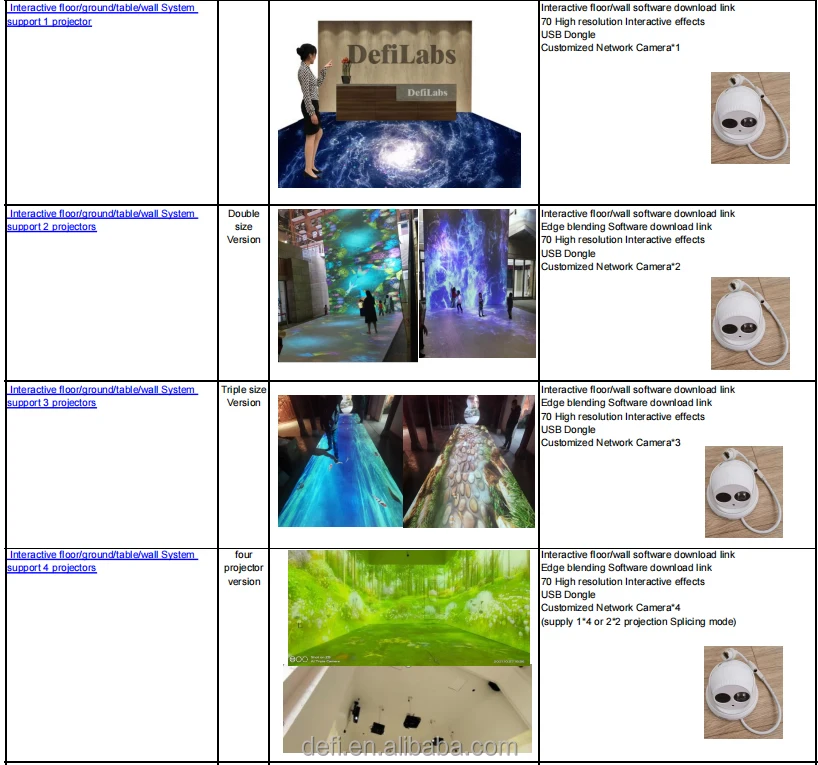
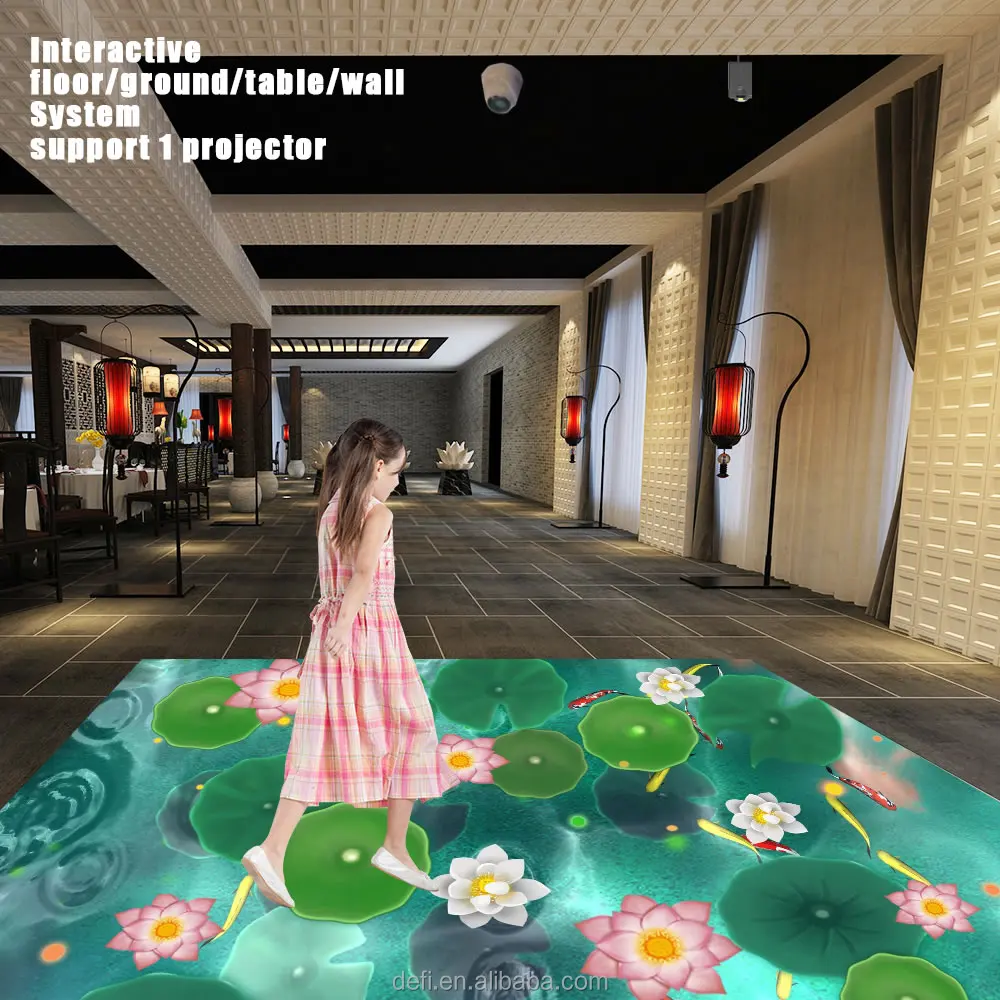
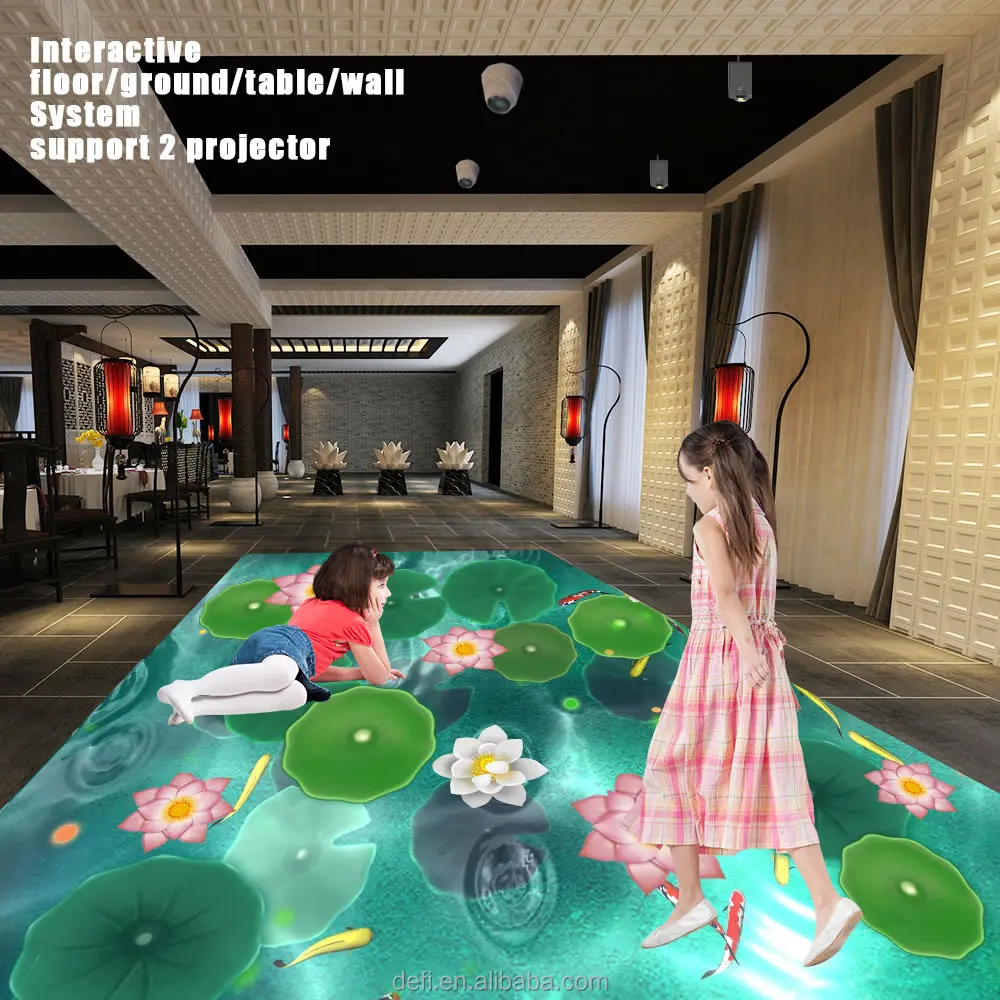

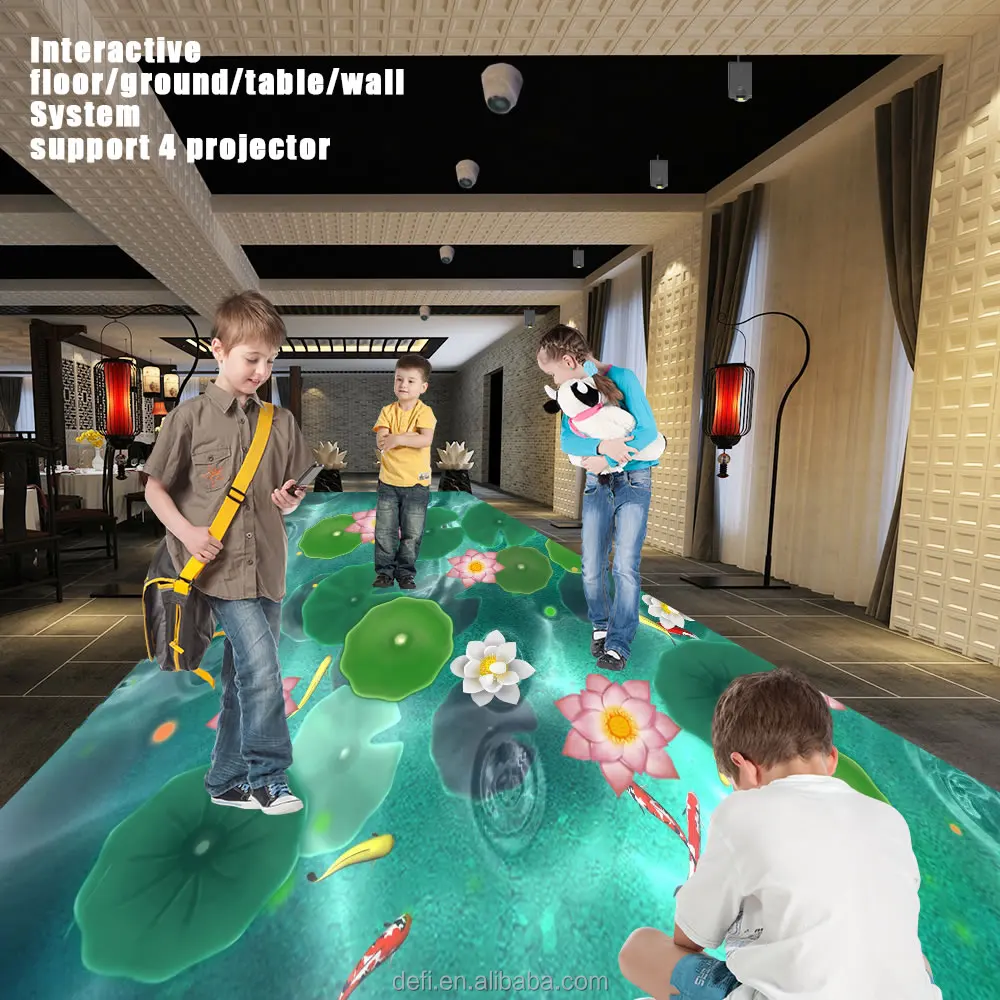
Multi Channel Interactive System
Computer Network Camera Settings
1. After installing the Network Camera, right-click the computer icon in the lower right corner, click open network and sharing center, and then click change adapter settings
2. Right-click NET WORK SETTING
the status first, and then click the details to view the IPv4 address, for example: 192.168.1.110
3. Right-click NET WORK SETTING
Click properties, and double click the pop-up list INTERNET PROTOCOL VERSION 4(TCP/IP v4)
4. Copy the first three numbers according to the IP seen from the front
Then fill the defined IP address 192.168.1.64
6. Fill in the Advanced box in the lower right corner and click Add in the pop-up box
7. Pop up list The IP address of the webcam is 192.168.1. x (64 by default)
8. After setting the interactive dongle, plug it in and open it in the main directory of the software
Please assemble the desktop into a large screen and follow the steps below
1.Double click the directory SuperEngine.exe
2.Double click and find the ,(If double click fails, please delete the same directory DeviceInformation.dat)
3.The interactive setting interface is as follows. After inserting the interactive dongle, click the arrow to select the number of channels
4. After selecting, click the arrow to select the corresponding interactive device
Choose NetCamera
Set each hardware CameraSet the IP address inside, 192.168.1. X (note that you should pay attention to the number pasted on each camera when installing multiple cameras, and set it according to the number). Set Start, slowly pull the Thresheld at the bottom to adjust the sensitivity. As long as there is nothing moving in the black area at the right of the screen, no white dots will flash, and then circle the range of the camera inside (the order is top left → top right → bottom right → bottom left), and click OK and then run interactive.exe to show interactive system effect list to run.



Q 1, while boot, or changing effects do you project your logo? and can I replace it to mine?
A: To make sure clients can make good business with our interactive floor/wall system, All the effects have not our logo. Our company name just display on the main interface of Schedule-Manager, when you run the effects, people can not see it.
Q 2, can I change eg the number of moving objects? the speed of them? the size of them?
A: You can replace background image and sound by yourself, it's easy to operate. And some effects moving objects, speed also can be changed. The size canot change.
Q 3, when creating a new app, want to try it, can I try it on the pc screen with the mouse, or have to turn on the projector and try it in live?
A: You can add your own flash or 3D effect as .swf or .exe format and run it in our interactive system, you can try it with mouse in advance, no problem.
Q 4, do I have to do the app developing on the pc, or can I do it on my notebook also, and when it is ready, copy it to the pc which operates the projector?
A: You can run our system on PC or Notebook, just make sure 3D graphic card is necessary becuase there are several 3D effects in our system. You need to use remote controler to operate the projector and our effects can be run one by one automatically.
Q5, while the system is working for me on an event, I want to work in my office, develop the new app for the next customer is it possible?
A: Yes, you can set all the effects run automatically in advanice from the ‘play' menu.
Q 6, what kind of projector included? will I able to buy spare lamp to that?
A: You need to prepare PC and projector local, the projector, we recommend 3000 lumen or better, normally we use 4200lumen projector to display our system.
Q 7, is the projector suitable for direct down projection to the floor?
A: Yes, please kindly check interactive system with Projector from the attachment. our system can be installed on the floor and wall, you can see the structure in our user manual.
Q 8, is the provided pc small enough to place into the bracket just beside the projector and camera?
A: We don't supply all in one version by far. But we are planing to produce that version in the near future.
Review